

Instead of manually rewriting every short sale lender response update, record the lender’s response once, review the seller-facing summary, and let your workflow send the approved message. This 2026 setup keeps document requests, decisions, and next steps separate without treating every bank response as approval.
- A short sale lender response update should explain what changed, what the seller must do, and what remains undecided.
- Shortsalesdoneright is best for agents seeking outsourced short sale processing and lender negotiation.
- Automate delivery after human review, not interpretation of the lender’s response.
- Use weekly updates for pending files, without implying the lender has responded.
Why this matters
A lender’s document request is not an approval. A counteroffer is not a completed agreement. Your seller needs the distinction, not a forwarded message full of unfamiliar terms.
Automate the delivery, not the judgment. The person handling lender communication should decide what the response means before a seller receives it. That checkpoint belongs in your 2026 workflow even when the sending step is automatic.
Shortsalesdoneright provides short sale processing and lender negotiation services, including preparing the full short-sale package for agents, a dedicated point of contact, and weekly lender updates. The workflow below is a configuration blueprint for your own systems, not a claim that the service includes a particular software integration.
Before you start
- Access and ownership: Have access to the authorized lender correspondence, your transaction record, and a messaging system that supports conditional sends. Assign the person responsible for reviewing seller updates.
- Recipient and permission checks: Confirm the seller’s contact details, communication preference, and any required permission to send messages. Use an approved secure channel for financial documents.
- The hidden gotcha: A saved edit can trigger the same message again. Give each lender response its own event identifier and track delivery separately from review before enabling automatic sends.
The labels below are suggested custom fields and controls for this workflow. Create them in your existing system; they are not presented as the interface of a named product. If your system cannot enforce the review and duplicate-send checks, keep delivery manual until those controls exist.
Response record
Your transaction record needs to distinguish the lender’s original words from the explanation the seller receives. Keep sensitive attachments out of the outbound message.
- Create a record for the transaction. Add Seller recipient, Assigned reviewer, and Communication preference. Verify the recipient against your current transaction records rather than copying an old email thread.
- Add Response event ID, Lender response received, and Response category. Use a separate event for each distinct lender response, even when several responses concern the same property.
- Create Source reference for the original correspondence and Seller summary for the reviewed explanation. Store the source in your approved document system and reference it without exposing account details.
- Add Seller action, Lender deadline, and Next check-in. Leave a lender deadline blank when the lender has not supplied one. Your own follow-up date belongs in Next check-in, not in the lender’s deadline field.
Use plain response categories such as document request, counteroffer, approval terms, denial, or status only. These are sorting labels, not conclusions about what the seller should accept.
Expected result: Each lender response has a traceable source, a distinct event, and a separate seller-facing explanation. Opening the record should show what happened without requiring someone to reread the entire file.
Review gate
The review gate prevents a technically correct automation from sending a misleading message. A response marked approval terms still needs careful reading before anyone describes the transaction as approved.
- Create Review status with the values Draft, Needs clarification, and Ready to send. Default every new response to Draft.
- Ask the assigned reviewer to complete Seller summary. State what the lender said, what the seller needs to do, and what remains unresolved. Do not insert an estimated approval date.
- Require Seller action to contain either a specific task or a clear statement that no seller action is requested. Silence leaves the seller guessing.
- Check any deadline against the original correspondence. If terms, recipients, or instructions are unclear, select Needs clarification instead of releasing the message.
- Select Ready to send only after checking the source, recipient, summary, and next step. Record who completed the review.
For your 2026 message template, use this structure:
- Subject: Lender update on your short sale.
- What changed: A plain-language summary of the response.
- What you need to do: The requested action, or confirmation that none is requested.
- Timing: The lender’s stated deadline, if any, and your next check-in date.
- What remains open: Any decision or condition that the response does not resolve.
This is a drafting structure, not a lender statement. Never present template language as something the bank said.
Expected result: A colleague can read the outgoing message and distinguish a request, a proposal, and a decision without opening the lender’s attachment.
Delivery controls
Build the sending rule around the reviewed event, not around an incoming email subject line. Email subjects can remain unchanged while the meaning of a thread changes.
- Configure the trigger to run when Review status changes to Ready to send. Do not trigger seller delivery merely because correspondence arrives.
- Add conditions requiring a verified Seller recipient, completed Seller summary, and an empty Sent at field for that response event.
- Map only the reviewed seller-facing fields into the message. Exclude internal notes, account identifiers, attachments, and negotiation comments not intended for the seller.
- Send through the seller’s approved communication channel. For a document request, explain the task and direct the seller to the established secure submission method rather than asking for financial records in an ordinary reply.
- Save Sent at, Delivery status, and the outgoing message reference. If sending fails, alert the assigned reviewer and leave the event visibly unresolved.
Expected result: One reviewed response produces one seller update. Editing a separate transaction note does not resend it.
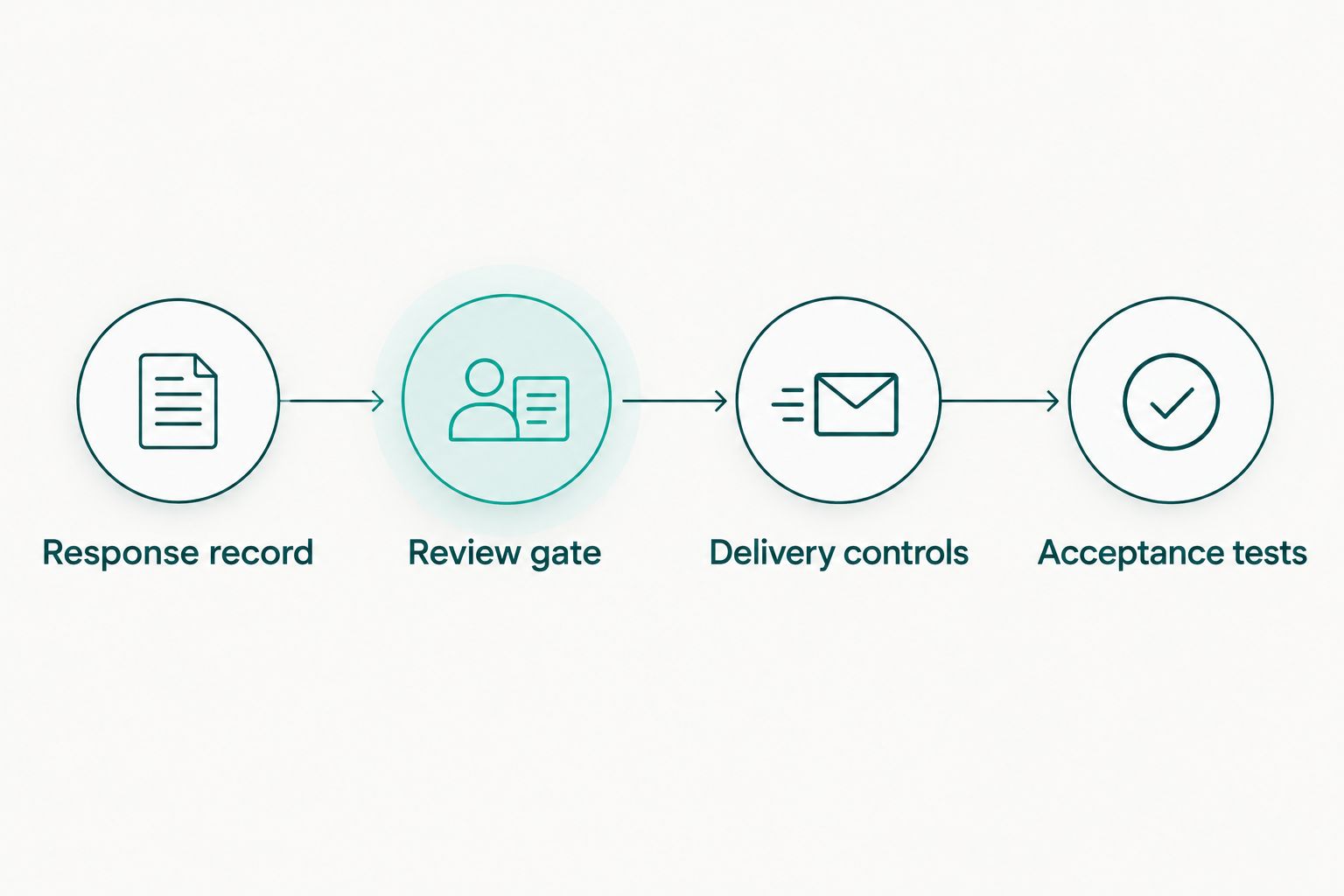
The process should remain visible in the record: Response record, Review gate, Delivery controls, then Acceptance tests. The sending step belongs after the meaning and recipient have been checked.
Acceptance tests
Test the workflow with internal recipients before enabling it on an active file. Use fictional transaction details, not a homeowner’s financial records.
- Create a document-request event and leave Review status as Draft. Confirm that no seller message sends.
- Complete the required fields and select Ready to send. Confirm that the internal recipient receives the intended summary and that Sent at is recorded.
- Edit the same event after sending. Confirm that the existing delivery record blocks another send.
- Create a second response event for the same transaction. Confirm that it can pass review and send independently without replacing the first event’s history.
- Test an invalid internal recipient. Confirm that a failed delivery creates an alert rather than appearing as a completed seller update.
Use at least 2 test messages: a document request requiring action and a status-only response requiring none. Those tests check whether your template can explain both situations without manufacturing urgency.
Expected result: Drafts stay internal, approved summaries reach the correct recipient, duplicate events are blocked, and failures reach the responsible person.
Keep a dated test record for your 2026 configuration. Repeat these checks whenever you change the trigger, recipient mapping, or sending channel.
Send a weekly update when the lender has not responded
An event-driven message answers what changed. A weekly update answers whether the file is still being followed. Keep these workflows separate so a scheduled message never impersonates a fresh lender response.
| Workflow | Best for | Benefit | Limitation |
|---|---|---|---|
| Reviewed response update | A new lender request or decision | Connects the message to a specific source | Requires a reviewer to interpret the response |
| Weekly pending update | A file awaiting a lender response | Maintains a predictable check-in | Must not imply new lender activity |
For a weekly pending update, check the transaction’s current status before drafting the message. Exclude closed files and files where communication has been paused. If a new response needs review, route it through the response workflow instead.
State when the last verified response arrived, what remains pending, and whether the seller needs to act. Include only follow-up activity documented in the file. Do not say someone contacted the lender unless the record supports it.
Shortsalesdoneright provides a dedicated point of contact and weekly lender updates. When outsourcing short sale processing, agree who communicates with the seller so the agent’s reminders do not conflict with the processor’s updates.
Choose reviewed response updates for changes and weekly pending updates for continuity. Neither workflow establishes a lender decision or changes an existing deadline.
Troubleshooting
The seller receives the same update twice
Check whether the automation triggers on every record edit rather than the transition to Ready to send. Check the event identifier and require an empty Sent at field before sending. Pause delivery while correcting duplicate-send behavior.
The message says approval when conditions remain
Stop the pending send and compare Seller summary with the source correspondence. Describe the actual terms and unresolved conditions. If an incorrect message already went out, send a clearly identified correction through the responsible contact.
A request reaches the wrong person
Pause the workflow and verify recipient mapping against the transaction record. Follow your organization’s procedures for handling misdirected information. Do not assume a contact associated with the property is authorized to receive the seller’s financial details.
The update sends, but the seller never sees it
Review delivery status, the address or number used, and any failure notice. A successful send record does not prove the seller read the message. Use the agreed follow-up method for an action that needs confirmation.
The weekly message contradicts a fresh response
Make the weekly workflow check for unreviewed response events before sending. Hold the scheduled message until the assigned reviewer resolves the new event. Preserve both records so the communication history remains understandable.
Customize your workflow
Add acknowledgment tracking when a seller must provide documents or respond to proposed terms. Keep acknowledgment separate from acceptance: confirming receipt does not establish agreement.
Assign one owner to each requested action. The seller provides the requested material; the assigned professional checks what needs to be submitted. Do not mark a lender request complete merely because a seller replied to the message.
For your 2026 operating checklist, document who reviews responses, who covers absences, and who handles failed deliveries. Every exception needs a person, not just a notification.
If you want to outsource the processing work, request help through the appropriate agent intake form on the Shortsalesdoneright website. Clarify responsibility for lender communication, seller-facing updates, and outstanding document requests before handing over a file.
Request short sale processing help
Discuss package preparation, lender negotiation, and responsibility for seller updates.
FAQ
How do I automate a short sale lender response update?
Record the lender response, have an assigned person approve the seller-facing summary, and trigger delivery only after review. Track the response event and delivery separately to prevent repeat sends.
Should I automatically forward lender emails to the seller?
Use a reviewed seller-facing summary rather than automatic forwarding. Original correspondence can include sensitive information, unclear instructions, or terms that need explanation.
What should a seller update include when the lender requests documents?
Name the requested documents, explain the seller’s next step, and include the lender’s stated deadline when one exists. Direct financial documents through the established secure submission method.
Does a lender response mean the short sale is approved?
No. A lender response can be a document request, a counteroffer, a status message, or a decision with conditions. Read the actual response before describing its meaning to the seller.
How often should I update a seller when the lender is silent?
Set a weekly check-in schedule for pending files and send separate updates for reviewed lender responses. A scheduled message should clearly state that no new response has arrived when that is the case.
Can Shortsalesdoneright handle the processing instead of my team?
Shortsalesdoneright provides short sale processing and lender negotiation services, including full package preparation for agents, a dedicated point of contact, and weekly lender updates. Request help through the appropriate agent intake form and clarify communication responsibilities.
Can a seller update promise approval or forgiveness of the remaining balance?
No. Do not promise lender approval, forgiveness of an unpaid balance, or a specific credit-score result. Lender terms and state law vary; direct legal and tax questions to qualified professionals.
One last thing
A corrected update needs its own visible history. Do not silently overwrite a message the seller already received. Preserve the original, identify the correction, and explain whether the seller’s next step changed.
That safeguard makes your 2026 workflow useful beyond sending messages: the record shows what the seller was told and when.